Setting Up a Wi-Fi Hotspot on Boot for Your Robot

TL;DR: Three small pieces give your robot a self-hosted Wi-Fi network that survives reboots: a script that brings up an
nmclihotspot, achmod 600credentials file it reads, and asystemdoneshot service that runs it at boot. Recipe below, tested on our Fetch robot (Ubuntu 18.04).
Index
Why Create a Wi-Fi Hotspot on Boot?
In robotics, self-hosted networks can be critical for:
- Connecting remote controllers or operator devices.
- Transmitting real-time data streams (e.g., images, depth, or control commands).
- Enabling peer-to-peer communication in isolated environments.
Let’s configure a Wi-Fi hotspot to start automatically whenever your robot boots up. 📡🤖✨
Prerequisites
- A Linux-based system (tested on Ubuntu). Our Fetch robot has Ubuntu 18.04 installed.
- NetworkManager installed (pre-installed on Ubuntu desktop editions).
- A compatible Wi-Fi adapter connected to the robot.
- Root access to the system.
📋 Ensure these are set up before proceeding!
Step 1: Create the Hotspot Script
Let’s have a directory related to this setting:
# try setting absolute path
export WIFI_ADAP_ROOT_DIR=/home/fetch/wifi-adapter-settings
mkdir -p $WIFI_ADAP_ROOT_DIR
cd $WIFI_ADAP_ROOT_DIR
We’ll use a Bash script to configure and start the hotspot. Create the file start_hotspot.sh:
#!/bin/bash

# Disable the firewall
ufw disable

echo "Firewall stopped and disabled on system startup"

# Wait for 2 seconds
sleep 2

# Read credentials and create hotspot
# Use the absolute path here: systemd runs this script with a clean
# environment, so $WIFI_ADAP_ROOT_DIR will NOT be set at boot.
CREDS_FILE=/home/fetch/wifi-adapter-settings/hotspot_creds.cfg
source $CREDS_FILE

# Create the hotspot
nmcli device wifi hotspot ifname alpha_wifi_adap ssid "$SSID" password "$PASSWORD" band a channel 149
Explanation of the Script:
- Disable the firewall: Ensures no network traffic is blocked (this is fine on an isolated lab robot — adjust for secure setups).
- Wait for 2 seconds: Adds a buffer to ensure system services are up.
- Source credentials: Reads the hotspot name (SSID) and password from hotspot_creds.cfg. Use the absolute path — when systemd runs this script at boot, shell environment variables like
$WIFI_ADAP_ROOT_DIRare not set. - Set up the hotspot: Uses nmcli to configure and start the hotspot.
Save this script to $WIFI_ADAP_ROOT_DIR/start_hotspot.sh and make it executable:
chmod +x $WIFI_ADAP_ROOT_DIR/start_hotspot.sh
Step 2: Create a Credentials File
Store your hotspot credentials in a secure configuration file:
nano $WIFI_ADAP_ROOT_DIR/hotspot_creds.cfg
Add the following content:
SSID="your_hotspot_name"
PASSWORD="your_secure_password"
Make sure the credentials file is readable only by the owner:
chmod 600 $WIFI_ADAP_ROOT_DIR/hotspot_creds.cfg
🛡️ This keeps your credentials secure!
Step 3: Create a Systemd Service
To ensure the hotspot script runs on every boot, create a systemd service file:
sudo nano /etc/systemd/system/start_hotspot.service
Add the following content:
[Unit]
Description=Start Hotspot Script on Boot
After=network.target

[Service]
Type=oneshot
ExecStart=/bin/bash /home/fetch/wifi-adapter-settings/start_hotspot.sh
RemainAfterExit=yes

[Install]
WantedBy=multi-user.target
Explanation of the Service File:
- After=network.target: Ensures the service starts after network services are ready.
- ExecStart: Runs the hotspot script. NOTE: Keep the absolute path of the script.
- RemainAfterExit: Keeps the service active after execution.
Enable the service:
sudo systemctl enable start_hotspot.service
Test the service by starting it manually:
sudo systemctl start start_hotspot.service
sudo systemctl status start_hotspot.service
If successful, the hotspot should start without errors. 🚀✨
Step 4: Verify Hotspot on Boot
To confirm the hotspot starts correctly after reboot:
- Reboot your system:
sudo reboot - Once the system boots up, check the hotspot status:
sudo systemctl status start_hotspot.service - You can also use the nmcli command to verify:
nmcli dev wifi
✅ This ensures everything is working smoothly! 🌟
Step 5: Optional – Add Status Check to ~/.bashrc
For convenience, add a status check to your ~/.bashrc file. This will display the hotspot’s status whenever you open a terminal:
# Check Hotspot Status, use absolute path
CREDS_FILE=/home/fetch/wifi-adapter-settings/hotspot_creds.cfg
if [ -f $CREDS_FILE ]; then
    source $CREDS_FILE
    if nmcli dev wifi | grep -q "$SSID"; then
        ip_address=$(ip addr show alpha_wifi_adap | grep 'inet ' | awk '{print $2}' | cut -d/ -f1)
        echo "Hotspot '$SSID' is LIVE."
        echo -e "- IP: $ip_address
- Password: $PASSWORD"
    else
        echo "Hotspot '$SSID' is NOT ACTIVE."
    fi
else
    echo "Hotspot credentials file not found."
fi
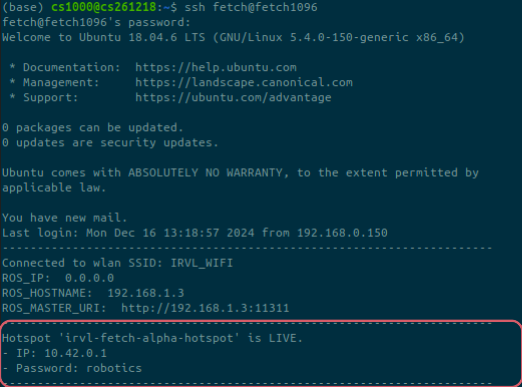
Right: A demo showcasing the HoloLens connecting to the created hotspot.
Troubleshooting
- Error: Not authorized to control network:
- Ensure the script is executed with root privileges.
- Error: either ‘dev’ is duplicate or ‘iwlist’ is garbage:
- Verify the hotspot interface name (alpha_wifi_adap).
- Double-check the hotspot script syntax.
- Hotspot not starting on boot:
- Check the service logs:
sudo journalctl -u start_hotspot.service
- Check the service logs:
🛠️ Be ready to debug as needed! 🧩
Feel free to reach out in case you have a query. You are always welcome. You can find me on X at @jishnu_jaykumar.